Instructions
- Go to your Gmail Inbox home page, click the gear icon towards top right corner for settings, and select "See all settings" at the top of the page.
- In the General settings tab, scroll down to the Signature section and click the "Create new" button.
- Name the signature and paste your signature from the signature generator into the text box.
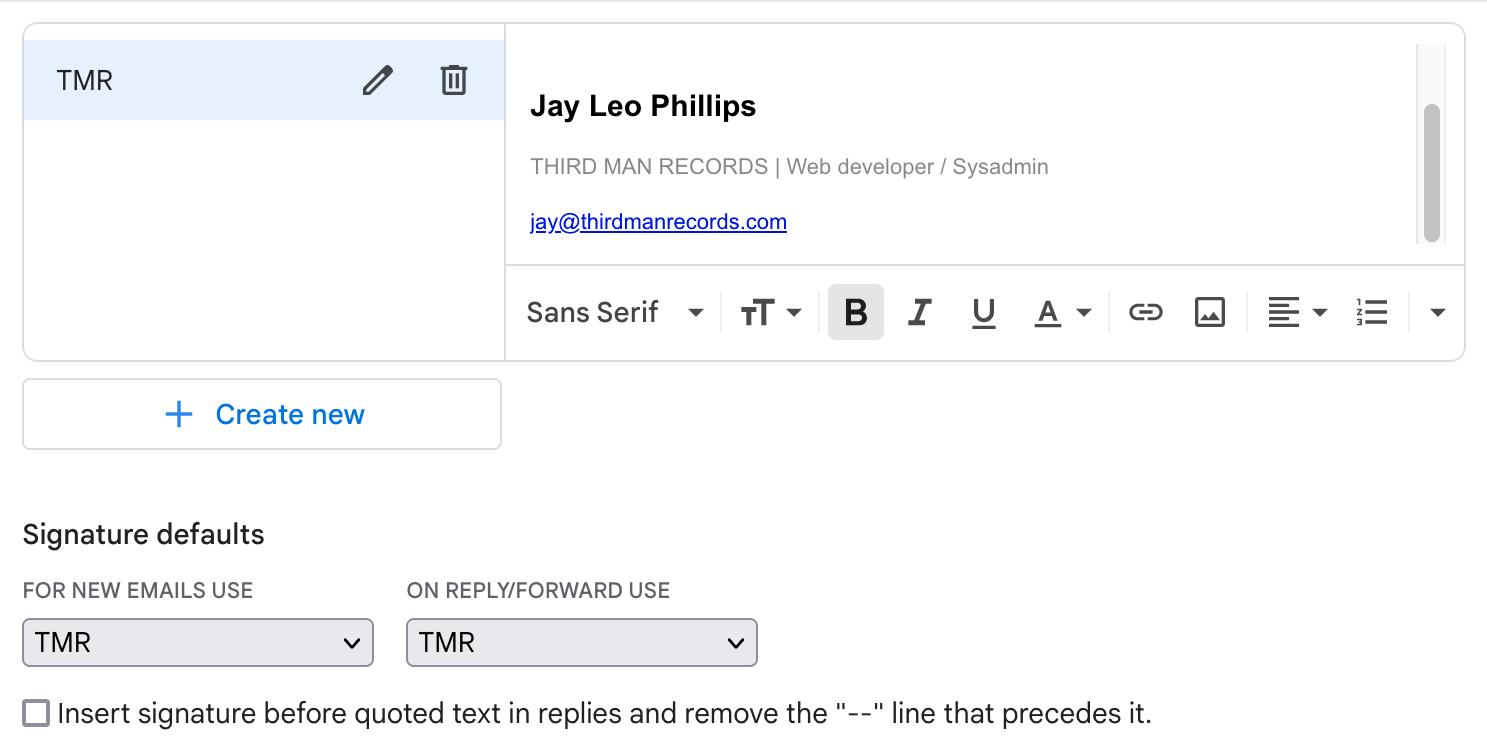
- Under "Signature defaults", select the signature you just created for both “New Emails” and “On Reply” and leave the box for "Insert signature …" unchecked.
It should look something like this when you're done: